In this post, we will cover all the Steps to create Environment in Dell Boomi & How to Attach an Atom to the Environment.
Steps to create Environment in Dell Boomi & How to attach an atom to the environment:
Step 1: Login Dell Boomi Platform using valid credentials:
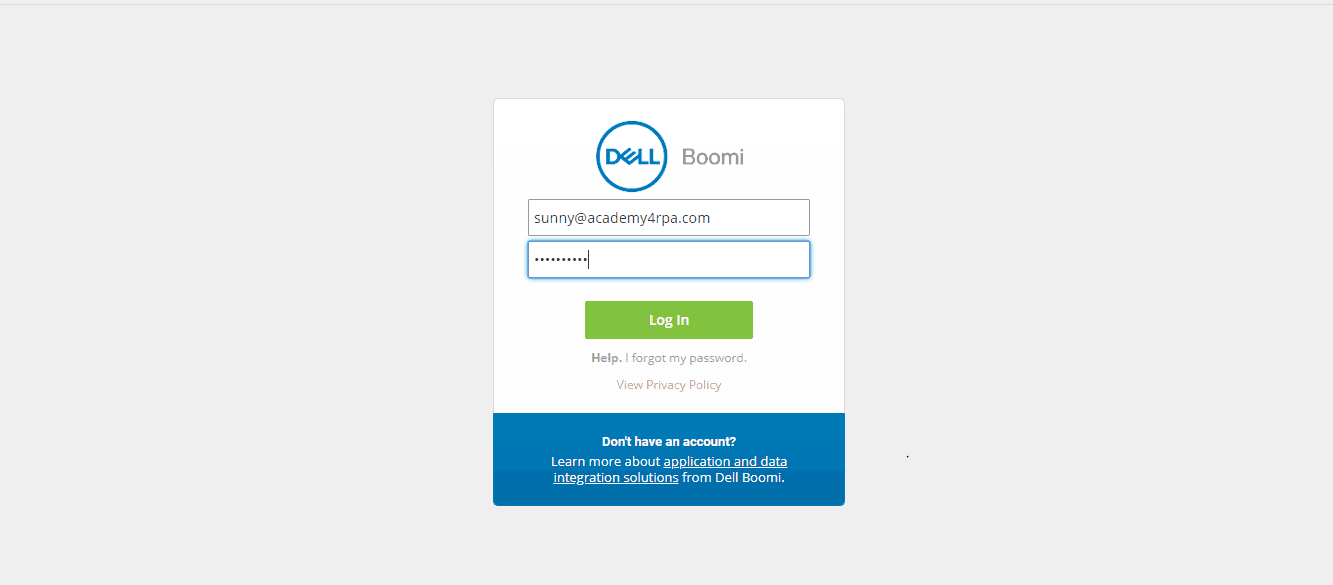
Login Screen_Dellboomi_Platform
Step 2: Go to Manage tab and then select Atom Management
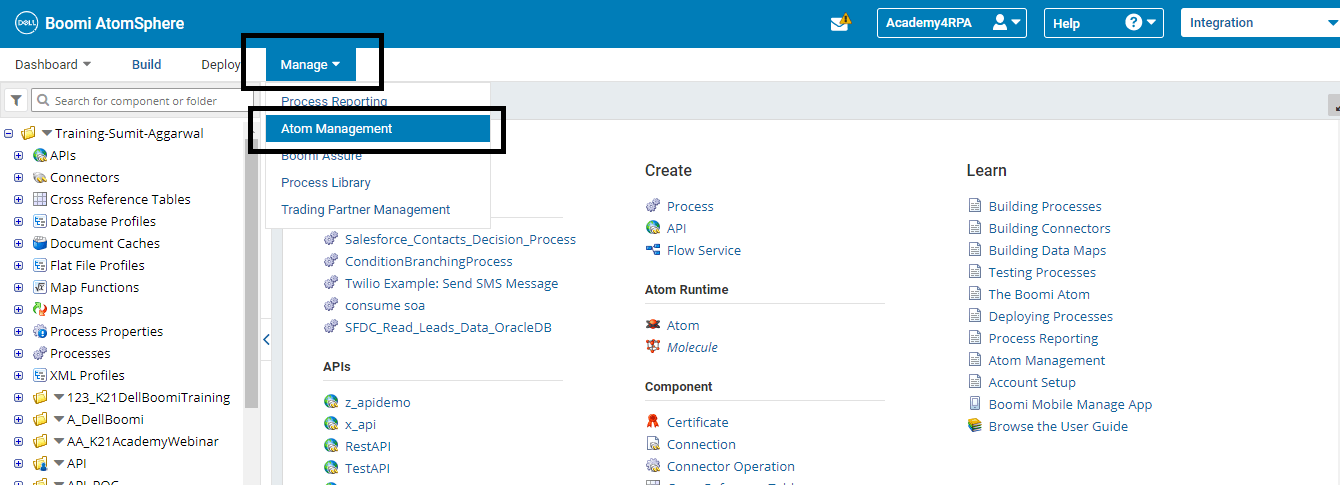
AtomManagement_DellBoomi
Step 3: Click on the New button and then select the Environment.
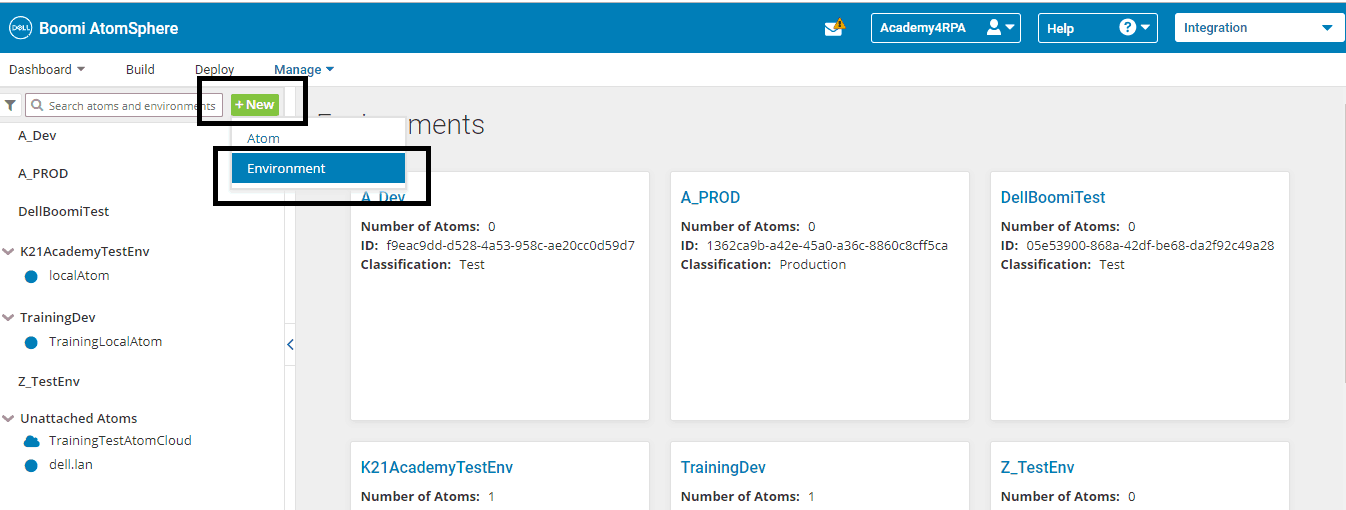
Dellboomi_Environment
Step 4: Name the environment appropriately and select the environment classification either Test or Production.
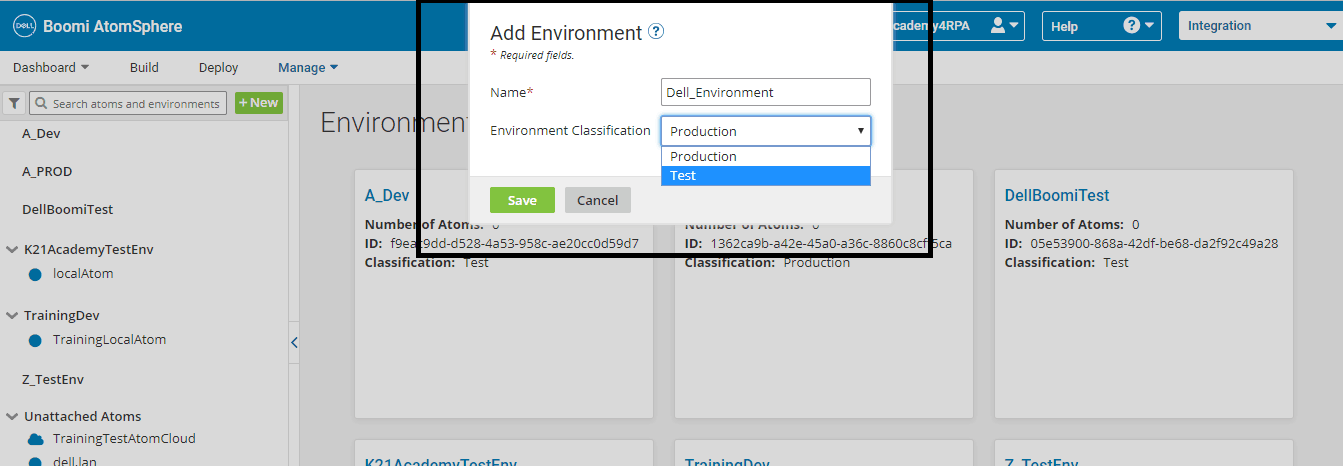
Dellboomi_Addenvironment
Step 5: Environment with name Dell_Environment gets created.
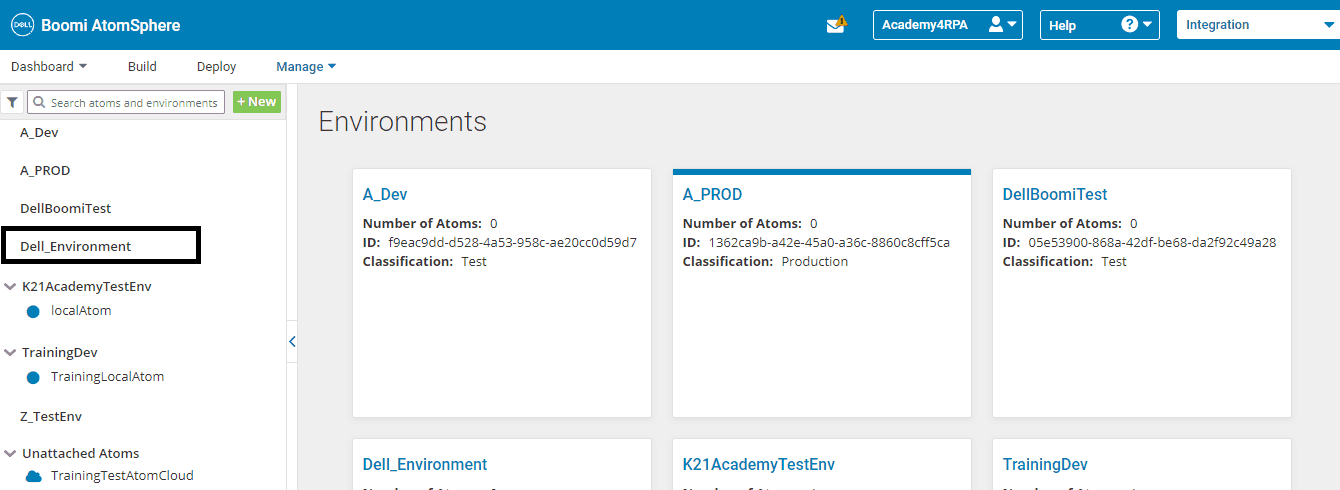
Dellboomi_CreatedEnvironment
Step 6: Select the environment from left and corresponding details get populated on right.
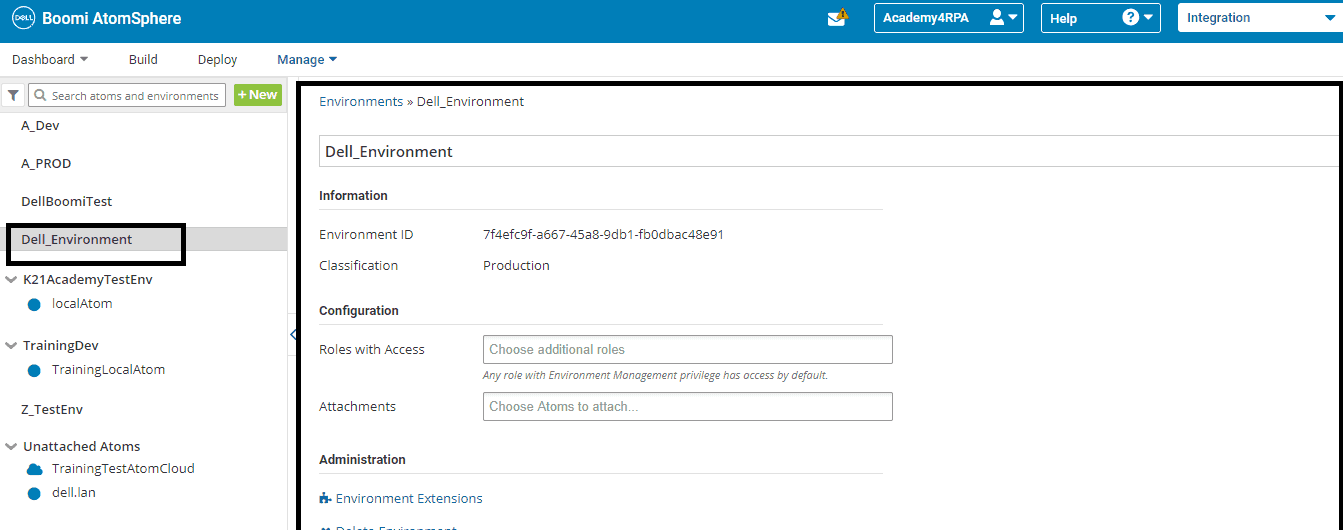
Dellboomi_Environment_Details
Step 7: Select the attachments and choose the unattached atom to be attached to the environment
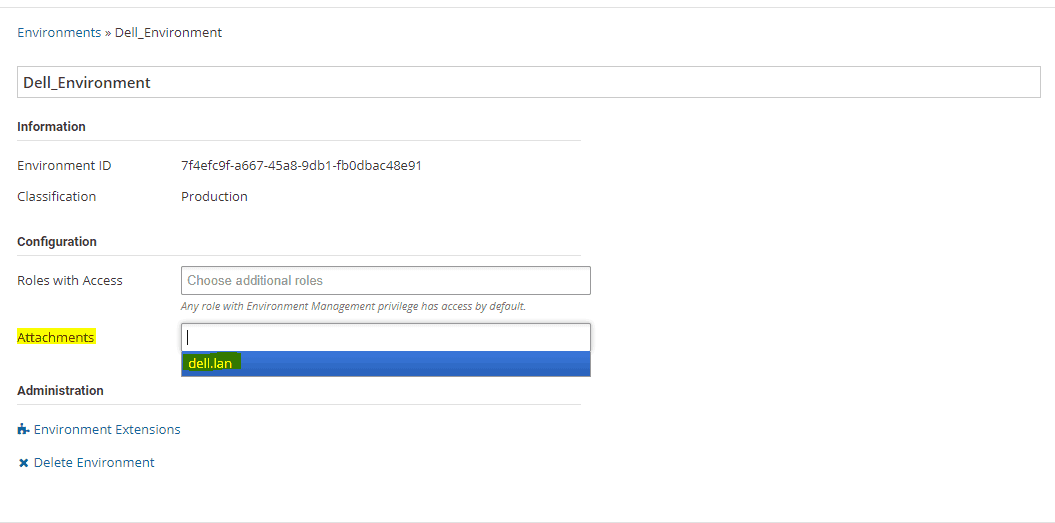
Attach_Atom_Dellboomi_Entvironment
Step 8: We get a message processing container attachments.
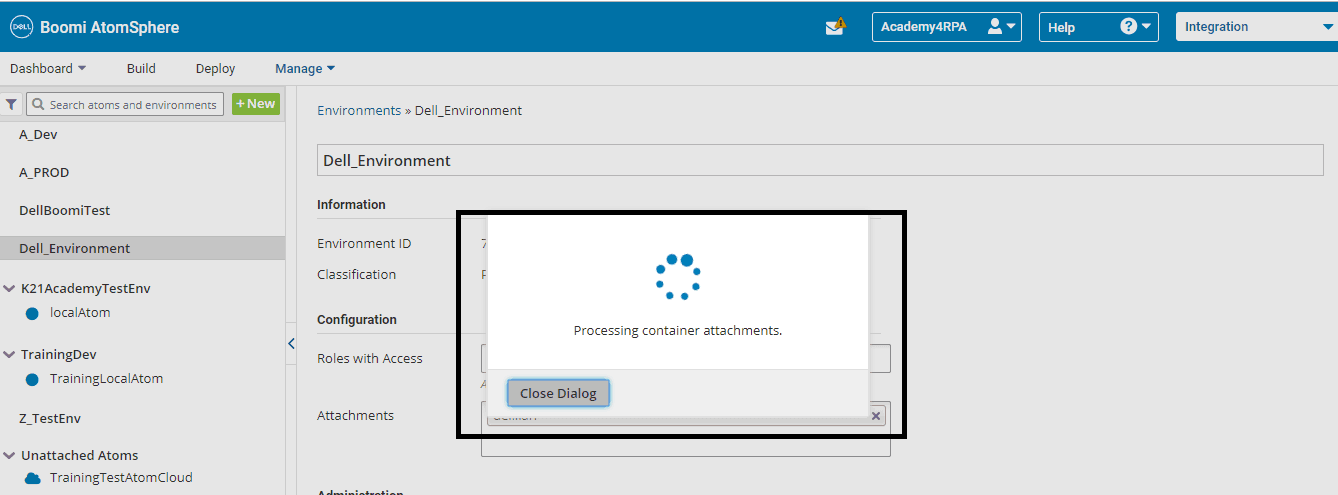
Dellboomi_Atom_Attached _To_Environment
Step 9: Atom gets attached to the environment and now the process can be deployed to an atom.
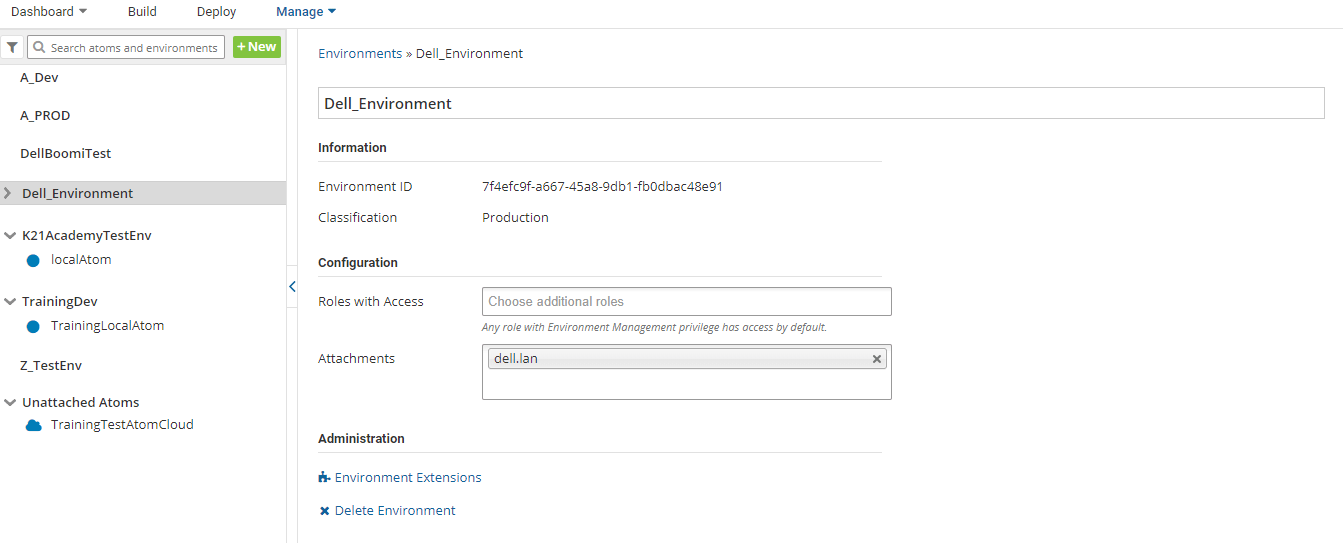
Dellboomi_Atom_Attached _To_Environment
So, this is all about the steps for Steps to create Environment in Dell Boomi & How to attach an atom to the environment.
Related Posts:
- Terminologies Every Dell Boomi Developer Must Know, Click Here
- Dell Boomi Platform: Step By Step Activity Guide/ Hands-on Lab Exercise Click Here
- Steps for Local Atom Installation of Dell Boomi Platform, Click Here
- Build your first Dell Boomi Process in 5 min, Click Here
- Steps to Deploy Process in Dell Boomi Platform, Click Here
- Unique Features of Dell Boomi Platform, Click Here
- How to schedule Process using Dell Boomi, Click Here
- Four Key Points About Dell Boomi AtomSphere Platform, Click Here
- Dell Boomi Training: Day 1 Review/Introduction & Q/As, Click Here
If you have not downloaded our FREE Guide i.e., 6 Docs Every Dell Boomi Developer Must Read yet, click on the image below to do it NOW!

Did You Find this Blog useful?
Leave a Comment.